
Ro-ràdh
The Microsoft Optical Desktop Elite for Bluetooth provides a wireless keyboard and mouse solution designed for use with Windows PCs. This combo utilizes Bluetooth wireless technology for connectivity, offering enhanced range and reliability. It enables synchronization and information sharing between your PC and other Bluetooth-enabled devices.
Dè th' anns a' Bhocsa
- Microsoft Bluetooth Keyboard
- Microsoft Bluetooth Optical Mouse
- USB Bluetooth Transceiver
- Bataraidhean (air an stàladh ro-làimh no air an toirt a-steach air leth)
- Sgrìobhainnean toraidh

Image: The retail packaging for the Microsoft Optical Desktop Elite for Bluetooth, showing the keyboard, mouse, and USB transceiver.
Suidhich
Stàlaich Bataraidhean
Ensure fresh batteries are installed in both the keyboard and the mouse. Refer to the battery compartment markings for correct polarity.
Connect USB Transceiver
Plug the included USB Bluetooth transceiver into an available USB port on your Windows PC. The system will typically install the necessary drivers automatically.
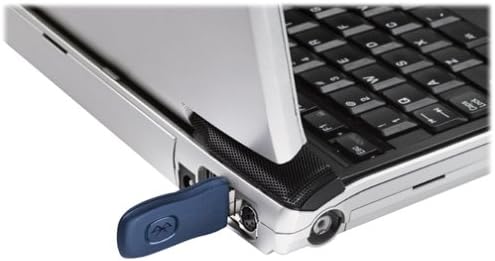
Image: A blue USB Bluetooth transceiver plugged into the side of a laptop computer.
Innealan Paidhir
Follow the on-screen prompts or refer to your Windows Bluetooth settings to pair the keyboard and mouse with the transceiver. This usually involves pressing a connect button on the devices and the transceiver.
Install Software (Optional)
For advanced customization of keyboard shortcuts and mouse buttons, install the Microsoft IntelliPoint and IntelliType Pro software from the official Microsoft website or the included CD (if applicable).
Stiùireadh Obrachaidh
The Microsoft Optical Desktop Elite for Bluetooth offers a range of features for enhanced productivity.

Image: The Microsoft Optical Desktop Elite keyboard and mouse, showcasing their ergonomic design and wireless nature.
Feartan meur-chlàr:
- Standard QWERTY Layout: Full-size keyboard with a standard QWERTY layout.
- Programmable Hot Keys: Utilize the customizable hot keys for quick access to applications, documents, or web duilleagan.
- Smachdan meadhanan: Dedicated keys for volume control, play/pause, and track navigation.
- Side-to-Side Scrolling: The keyboard features a scroll wheel or button for horizontal scrolling in documents and web duilleagan.
Feartan luchag:
- Tracadh Optaigeach: Provides precise and smooth cursor control on various surfaces.
- Cuibhle Scroll: For vertical scrolling and button functionality.
- Side-to-Side Scrolling: The mouse scroll wheel also supports horizontal scrolling.
- Putanan prògramaichte: Customize side buttons for specific functions using the IntelliPoint software.
- Beatha bataraidh nas fhaide: Designed for extended use between battery replacements.

Image: A detailed diagram highlighting various features and buttons on the Microsoft Optical Desktop Elite keyboard and mouse.
Cumail suas
Glanadh:
- Meur-chlàr: Cleachd clò bog, gun lint beagan dampair a nighe le uisge no le fuasgladh glanaidh tlàth. Seachain cus taiseachd.
- Luch: Clean the optical sensor area on the bottom of the mouse with a dry cotton swab. Wipe the body with a soft, damp aodach.
- Do not immerse devices in liquid.
Ath-nuadhachadh bataraidh:
- When battery indicators on the keyboard or mouse signal low power, replace batteries promptly.
- Open the battery compartment, remove old batteries, and insert new ones, ensuring correct polarity.
- Tilg air falbh seann bataraidhean a rèir riaghailtean ionadail.
Fuasgladh thrioblaidean
- Devices not connecting or frequently disconnecting:
- Ensure the USB Bluetooth transceiver is securely plugged into a working USB port.
- Check battery levels in both the keyboard and mouse. Replace if low.
- Re-pair the devices with the transceiver. Refer to the "Pair Devices" step in the Setup section.
- Ensure no other strong wireless signals (e.g., Wi-Fi routers, other Bluetooth devices) are causing interference. Try moving the transceiver closer to the devices.
- Ath-thòisich an coimpiutair agad.
- Mouse cursor is erratic or unresponsive:
- Glan an sensor optigeach aig bonn na luchaige.
- Ensure you are using the mouse on a suitable surface. Highly reflective or transparent surfaces may cause issues.
- Thoir sùil air ìrean bataraidh.
- Keyboard keys are not responding:
- Thoir sùil air ìrean bataraidh.
- Ensure the keyboard is paired correctly.
- Verify that the keyboard is not in a sleep mode. Press any key to wake it.
- Side-to-side scrolling not working:
- Ensure the IntelliPoint/IntelliType Pro software is installed and configured correctly.
- Verify that the application you are using supports horizontal scrolling.
Sònrachaidhean
| Feart | Mion-fhiosrachadh |
|---|---|
| Brand | Microsoft |
| Modail | Optical Desktop Elite for Bluetooth |
| Teicneòlas ceangail | Bluetooth, USB, Gun Uèir |
| Innealan co-fhreagarrach | Personal Computer (Windows OS) |
| Dearbhadh Gluasaid | Optical (Mouse) |
| Cruth meur-chlàr | QWERTY (105 Keys) |
| Stòr cumhachd | Cumhachd bataraidh |
| Cuideam nì | 4 notaichean (timcheall air) |
| Dath | Dubh/gorm |
Barantas agus Taic
For warranty information and technical support, please refer to the documentation included with your product or visit the official Microsoft support weblàrach. Cùm dearbhadh ceannach airson tagraidhean barantais.
Taic air-loidhne: taic.microsoft.com