
Ro-ràdh
This manual provides instructions for the setup, operation, maintenance, and troubleshooting of your Microsoft Wireless Optical Mouse Blue, Model K80-00004. Please read this manual thoroughly before using your device.
Dè th' anns a' Bhocsa
Dèan cinnteach gu bheil a h-uile nì anns a’ phacaid:
- Microsoft Wireless Optical Mouse
- Glacadair gun uèir
- 2 bataraidh AA (air an stàladh ro-làimh no air an toirt a-steach air leth)
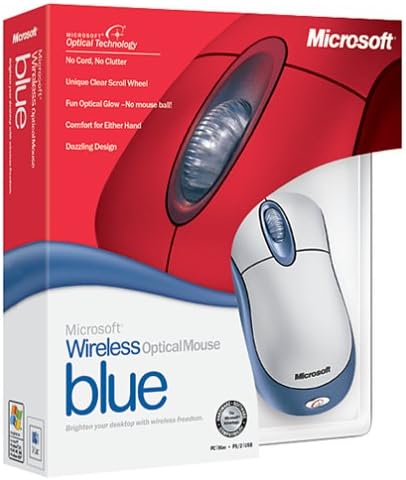
Image: Retail packaging of the Microsoft Wireless Optical Mouse Blue, showing the mouse and receiver.
Suidhich
1. Stàlaich bataraidhean
- Lorg an roinn bataraidh air taobh shìos na luchaige.
- Fosgail an còmhdach roinn bataraidh.
- Cuir a-steach an dà bataraidh AA, a’ dèanamh cinnteach gu bheil am polarachd cheart (+/-).
- Dùin an còmhdach roinn bataraidh.

Ìomhaigh: Aghaidh view of the Microsoft Wireless Optical Mouse Blue, showing the top buttons and scroll wheel. The battery compartment is on the underside.
2. Connect the Wireless Receiver
- Cuir an glacadair gun uèir USB a-steach do phort USB a tha ri fhaighinn air a’ choimpiutair agad.
- Allow your operating system to detect and install the necessary drivers. This process is usually automatic.
- For optimal performance, ensure the receiver is placed at least 12 inches away from other wireless devices or large metal objects.
3. Optional Software Installation (IntelliPoint)
- While not required for basic functionality, installing Microsoft IntelliPoint software provides advanced customization options for your mouse buttons and scroll wheel.
- Refer to the Microsoft support website for the latest IntelliPoint software compatible with your operating system.
4. Set Orientation (Calibration)
- After initial setup, it is recommended to perform an "Orientation Set" or calibration if available through the IntelliPoint software or your operating system's mouse settings. This helps optimize tracking performance.
Stiùireadh Obrachaidh
The Microsoft Wireless Optical Mouse Blue is designed for comfortable and precise navigation.
Gnìomhan bunaiteach
- Cliog air chlì: Prìomh phutan airson nithean a thaghadh, fosgladh files, agus ag eadar-obrachadh le bathar-bog.
- Cliog deas: Secondary button for accessing context menus and additional options.
- Cuibhle Scroll: Rollaich an roth suas no sìos gus gluasad tro sgrìobhainnean agus web pages. The scroll wheel may also function as a clickable button for additional commands, depending on software configuration.
Obrachadh gun uèir
- The mouse operates wirelessly up to 6 feet (approximately 1.8 meters) from its receiver.
- Optical technology scans the desktop surface for precise cursor movement without the need for a mouse pad on most surfaces.
- The mouse is designed for comfortable use with either the right or left hand.

Ìomhaigh: Ceàrnach view of the Microsoft Wireless Optical Mouse Blue, highlighting its ergonomic shape and blue/silver design.
Cumail suas
Ath-nuadhachadh bataraidh
- The mouse requires two AA batteries.
- When battery power is low, your computer may display a notification (if IntelliPoint software is installed) or mouse performance may degrade.
- Replace batteries as described in the "Install Batteries" section under Setup.
- Always use fresh, high-quality batteries for optimal performance.
Glanadh
- To clean the mouse, gently wipe the surface with a soft, damp aodach.
- Seachain ceimigean cruaidh no innealan-glanaidh sgrìobach a chleachdadh, oir faodaidh iad sin milleadh a dhèanamh air a’ chrìochnachadh.
- Dèan cinnteach nach tèid leaghan a-steach do phàirtean a-staigh na luchaige.
Travel Considerations
- The Microsoft Wireless Optical Mouse is a transmitting device. When traveling by air, it is recommended to remove the batteries from the mouse before boarding to comply with airline regulations regarding electronic devices.
Fuasgladh thrioblaidean
Mouse Not Responding or Lagging
- Thoir sùil air bataraidhean: Dèan cinnteach gu bheil na bataraidhean air an cur a-steach gu ceart agus gu bheil iad làn-chumhachdach. Cuir an àite iad ma tha sin riatanach.
- Check Receiver Connection: Ensure the wireless receiver is securely plugged into a functioning USB port. Try a different USB port.
- Cho faisg air: Ensure the mouse is within 6 feet of the receiver. Reduce obstacles between the mouse and receiver.
- Eadar-theachd: Other wireless devices (e.g., Wi-Fi routers, cordless phones) can cause interference. Move the receiver away from such devices.
- Uachdar: Ensure the mouse is used on a suitable surface. Highly reflective or transparent surfaces may affect optical tracking.
- Re-sync: Some wireless mice have a re-sync button on both the mouse and receiver. Consult the full product manual or Microsoft support for specific re-sync procedures for this model if issues persist.
Clicking Issues
- If clicks are not registering or require multiple presses, check for physical obstructions or debris around the buttons.
- Dèan cinnteach gu bheil an luchag air agus ceangailte.
Co-fhreagarrachd bathar-bog
- The IntelliPoint software may have specific operating system requirements. For example, older versions may not be compatible with newer operating systems like Windows Vista or later.
- Always download the latest software from the official Microsoft support weblàrach-lìn airson an t-siostam obrachaidh sònraichte agad.
Sònrachaidhean
| Feart | Mion-fhiosrachadh |
|---|---|
| Modail Àireamh | K80-00004 |
| Brand | Microsoft |
| Teicneòlas ceangail | Uèirleas |
| Dearbhadh Gluasaid | Optical |
| Dath | Blue / Silver |
| Bataraidhean | 2 bataraidh AA (air an toirt a-steach) |
| Cuideam nì | 13.6 unnsa (mu 385.5 gram) |
| Meudan toraidh | 9.3 x 8.9 x 2.1 òirleach (timcheall air 23.6 x 22.6 x 5.3 cm) |
| A’ chiad cheann-latha ri fhaighinn | 1 Lùnastal, 2002 |
Fiosrachadh Barantais
According to the legal disclaimer, this product is sold without a warranty. Please refer to your point of purchase for any return or exchange policies.
Taic
For further assistance, driver downloads, or updated information regarding your Microsoft Wireless Optical Mouse Blue, please visit the official Microsoft support weblàrach.
You can typically find support resources by searching for "Microsoft support" and your product model number (K80-00004).